Amabie Labo
UI Toolkit で Raycast を擬似的に表現する
こんびえ〜🧜♂️天日江護です🐳
今回は 3D オブジェクトの判定に Raycast を使っていたら UI Toolkit を貫通してしまったのでその解消方法について解説します。
背景
そもそも記事にするほどでもないかなと思っていたのですが、当時調べていた時に UI Toolkit に関する記事が少ないと感じたので寄稿することにしました。
問題
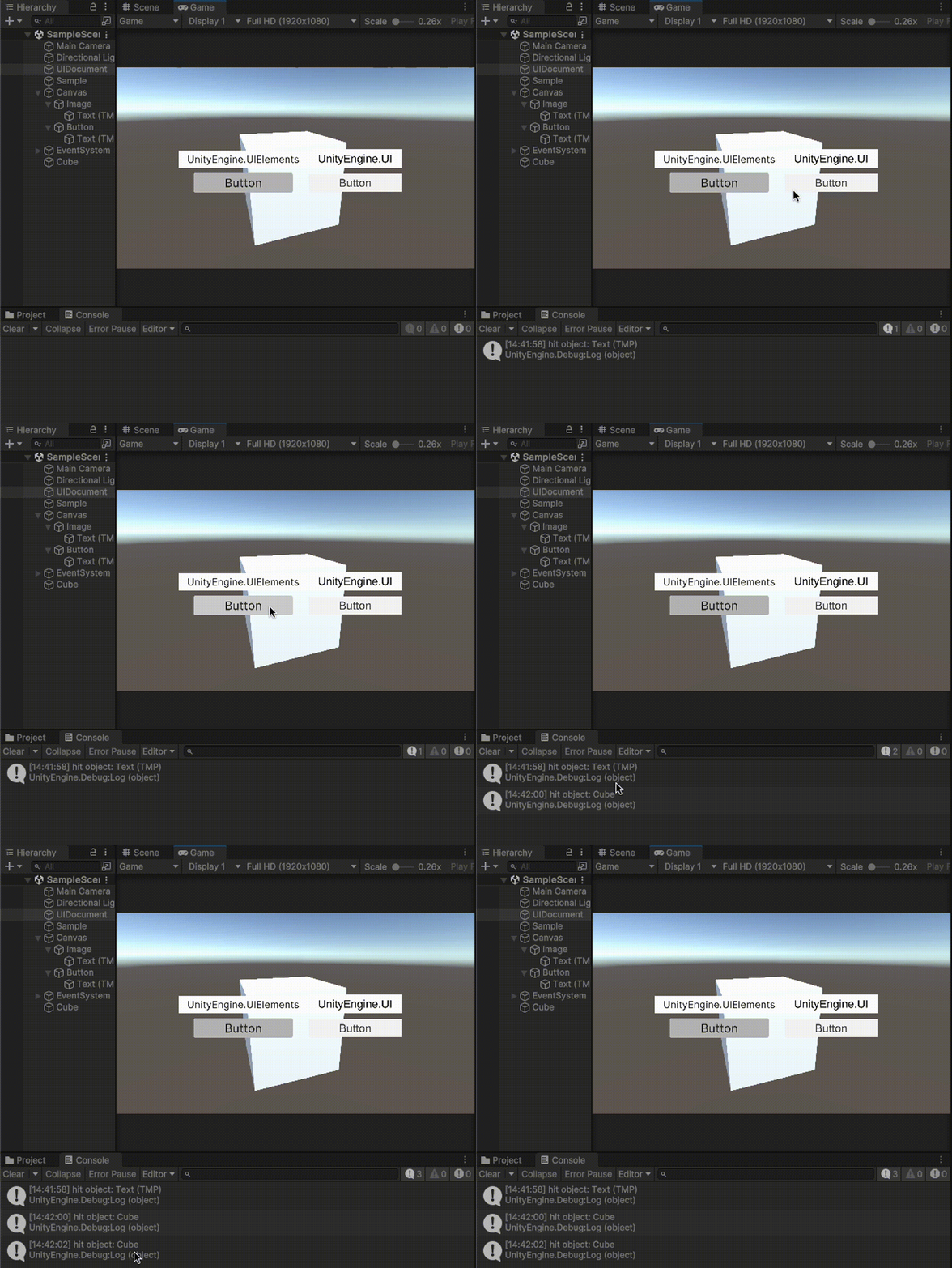
以下の画像のように 3D オブジェクトの判定に Raycast を使っていたら UnityEngine.UI の Button (TextMesh Pro) を利用した際は EventSystem の RaycastAll を使って判定できていました。
が、 UnityEngine.UI.Button の Button (UI Toolkit) を利用した際は貫通して背後の 3D オブジェクト (Cube) を取得してしまうという問題が発生しました。
using System.Collections.Generic;
using UnityEngine;
using UnityEngine.EventSystems;
using UnityEngine.UIElements;

public class Sample : MonoBehaviour
{
    private PointerEventData pointData;

    private void Start()
    {
        // RaycastAll の引数 PointerEvenData を作成
        pointData = new PointerEventData(EventSystem.current);
    }

    private void Update()
    {
        if (Input.GetMouseButtonDown(0)) {
            string resultObjectName = "";

            // RaycastAllの結果格納用のリスト作成
            List<raycastresult> RayResult = new List<raycastresult>();

            // PointerEvenDataに、マウスの位置をセット
            pointData.position = Input.mousePosition;

            // Raycast(スクリーン座標)
            EventSystem.current.RaycastAll(pointData, RayResult);

            foreach (var rayResult in RayResult)
            {
                // UIDocument がヒエラルキーに配置されている場合 UIElements.PanelSettings がひっかかるのでスキップ
                if (rayResult.gameObject.GetComponent<panelraycaster>() != null) { continue; }

                // 最初に Raycast があたったオブジェクトを取得
                resultObjectName = rayResult.gameObject.name;
                break;
            }

            // Raycast に何かぶつかった場合は出力
            // (uGUI の UnityEnigne.UI オブジェクトはここで出力され、UIToolkit の UnityEngine.UIElements オブジェクトはここをスルーする)
            if (resultObjectName != "") {
                Debug.Log($"hit object: {resultObjectName}");
                return;
            }

            // 何もぶつからなかった場合は Raycast で出力
            // (マウスクリックした位置の 3D 空間上のオブジェクトの取得)
            Ray ray = Camera.main.ScreenPointToRay(Input.mousePosition);
            if (Physics.Raycast(ray.origin, ray.direction, out RaycastHit info, Mathf.Infinity))
            {
                Debug.Log($"hit object: {info.collider.name}");
            }
        }
    }
}
そこで、今回は Raycast 自体は使わないが、マウスの押下地点で UI Toolkit が前面にあった場合に取得できるプログラムを書いたのでそれを紹介します。
注) ちなみに、本記事ではコードの最適化はしておらず、製品に埋め込むコードとしては処理効率やメモリ効率の観点でよろしくありません。あくまで可読性とコピペでも使いやすいを意識しています。ご了承ください。
結論
結論から言うと、海外の方の記事を翻訳して、参考コード※1を最小限にして埋め込んだだけです。
※1) NickMercer/ExampleNonUIMonoBehaviour.cs - Github Gist
using System.Collections.Generic;
using UnityEngine;
using UnityEngine.EventSystems;
using UnityEngine.UIElements;
using UnityEngine.InputSystem;

public class Sample : MonoBehaviour
{
    [SerializeField] private UIDocument uiDocument;
    private PointerEventData pointData;

    private void Awake()
    {
        if (uiDocument == null) { return; }
        VisualElement root = uiDocument.rootVisualElement;
        Button button = root.Q<button>();
        // ボタンをヒット対象として登録する
        UIToolkitRaycastChecker.RegisterBlockingElement(button);
    }

    private void Start()
    {
        // RaycastAllの引数PointerEvenDataを作成
        pointData = new PointerEventData(EventSystem.current);
    }

    private void Update()
    {
        if (Input.GetMouseButtonDown(0)) {
            string resultObjectName = "";

            // RaycastAllの結果格納用のリスト作成
            List<raycastresult> RayResult = new List<raycastresult>();

            // PointerEvenDataに、マウスの位置をセット
            pointData.position = Input.mousePosition;
            // RayCast(スクリーン座標)
            EventSystem.current.RaycastAll(pointData, RayResult);

            // UI Toolkit を検知した場合はここで検知する
            if (UIToolkitRaycastChecker.IsHoverUI())
            {
                Debug.Log($"hit object: {UIToolkitRaycastChecker.#g#HitElement#g#()}");
                return;
            }

            foreach (var rayResult in RayResult)
            {
                // UIDocument がヒエラルキーに配置されている場合 UIElements.PanelSettings がひっかかるのでスキップ
                if (rayResult.gameObject.GetComponent<panelraycaster>() != null) { continue; }

                // 最初に Raycast があたったオブジェクトを取得
                resultObjectName = rayResult.gameObject.name;
                break;
            }

            // Raycast に何かぶつかった場合は出力
            if (resultObjectName != "") {
                Debug.Log($"hit object: {resultObjectName}");
                return;
            }

            // 何もぶつからなかった場合は Raycast で出力
            Ray ray = Camera.main.ScreenPointToRay(Input.mousePosition);
            if (Physics.Raycast(ray.origin, ray.direction, out RaycastHit info, Mathf.Infinity))
            {
                Debug.Log($"hit object: {info.collider.name}");
            }
        }
    }
}

public static class UIToolkitRaycastChecker
{
    private static HashSet<visualelement> _blockingElements = new HashSet<visualelement>();

    public static void RegisterBlockingElement(VisualElement blockingElement) =>
        _blockingElements.Add(blockingElement);

    public static bool IsBlockingRaycasts(VisualElement element)
    {
        return _blockingElements.Contains(element) &&
               element.visible;
    }

    public static bool IsHoverUI()
    {
        foreach (var element in _blockingElements)
        {
            if (IsBlockingRaycasts(element) == false)
                continue;

            if (ContainsMouse(element) && element.visible)
            {
                return true;
            }
        }

        return false;
    }

    public static VisualElement HitElement()
    {
        foreach (var element in _blockingElements)
        {
            if (IsBlockingRaycasts(element) == false)
                continue;

            if (ContainsMouse(element) && element.visible)
            {
                return element;
            }
        }
        return null;
    }

    private static bool ContainsMouse(VisualElement element)
    {
        // Nullぽケアで拡張
        try
        {
            var mousePosition = Mouse.current.position.ReadValue();
            var scaledMousePosition = new Vector2(mousePosition.x / Screen.width, mousePosition.y / Screen.height);

            var flippedPosition = new Vector2(scaledMousePosition.x, 1 - scaledMousePosition.y);
            // Null になることがある
            var adjustedPosition = flippedPosition * element.panel.visualTree.layout.size;

            var localPosition = element.WorldToLocal(adjustedPosition);

            return element.ContainsPoint(localPosition);
        }
        catch
        {
            return false;
        }
    }
}
なぜ貫通するのか
それは UnityEngine.UI と UnityEngine.UIElements のレイヤーの考え方の違いにあります。
※1) UI Toolkit の新機能紹介 - Unity ブログ
※2) Font Asset Creator - docs.unity3d.com
手順
FontAsset の必要性について理解してもらったところで適応手順について説明します。
Unity Editor 上のタスクバーの [Window] から [Text] の [Font Asset Creator] を選択します。
ウィンドウが立ち上がるため、FontAsset を作りたいフォントを選択、あるいはドラッグ & ドロップします。
もしフォントを持っておらず試したい場合は基本的に無料 & 商用利用も可能で、フォントの種類も豊富にあるため Google Fonts から選んでダウンロードするのがおすすめです。
次に、フォントの解像度を選び [Character Set] を [Custom Characters] にします。
[Custom Character List] の設定はやや複雑なため説明します。
https://gist.github.com/kgsi/ed2f1c5696a2211c1fd1e1e198c96ee4 に飛び、右上にある Download ZIP のボタンをクリックし、ダウンロードしたファイルを解凍すると、中に文字列が大量に入ったテキストがあるので、中身をコピペして [Custom Character List] に貼りつけます。
ここまでの手順は TextMesh Pro で日本語フォントを使う方法【Unity】 - 夜中にUnity で TextMesh Pro 時代の手順が記載されているので、参考にしてみてください。
最後に、[Generate Font Atlas] を押すと、長い時間かけて Font Asset が生成されるので、生成後、ウィンドウ最下部の [Save] で保存して、UI Builder から [Font Asset] の欄で生成された Font Asset を選択すれば成功です。
今回はここまで。よき開発ライフを〜🧜♂️